Extract colors from any image
RazSoft Image Color Extractor makes it easy to discover the colors inside any photo, screenshot, logo, illustration, or design. Upload an image and the tool automatically analyzes it to create a color palette from the image. You can also select a specific point to identify the exact color used at that location.
The tool is useful for designers, frontend developers, marketers, photographers, and anyone who needs to identify colors from visual content. Find the HEX color of a button in a screenshot, recreate brand colors from a logo, or discover a reusable color scheme from a photograph without installing any software.
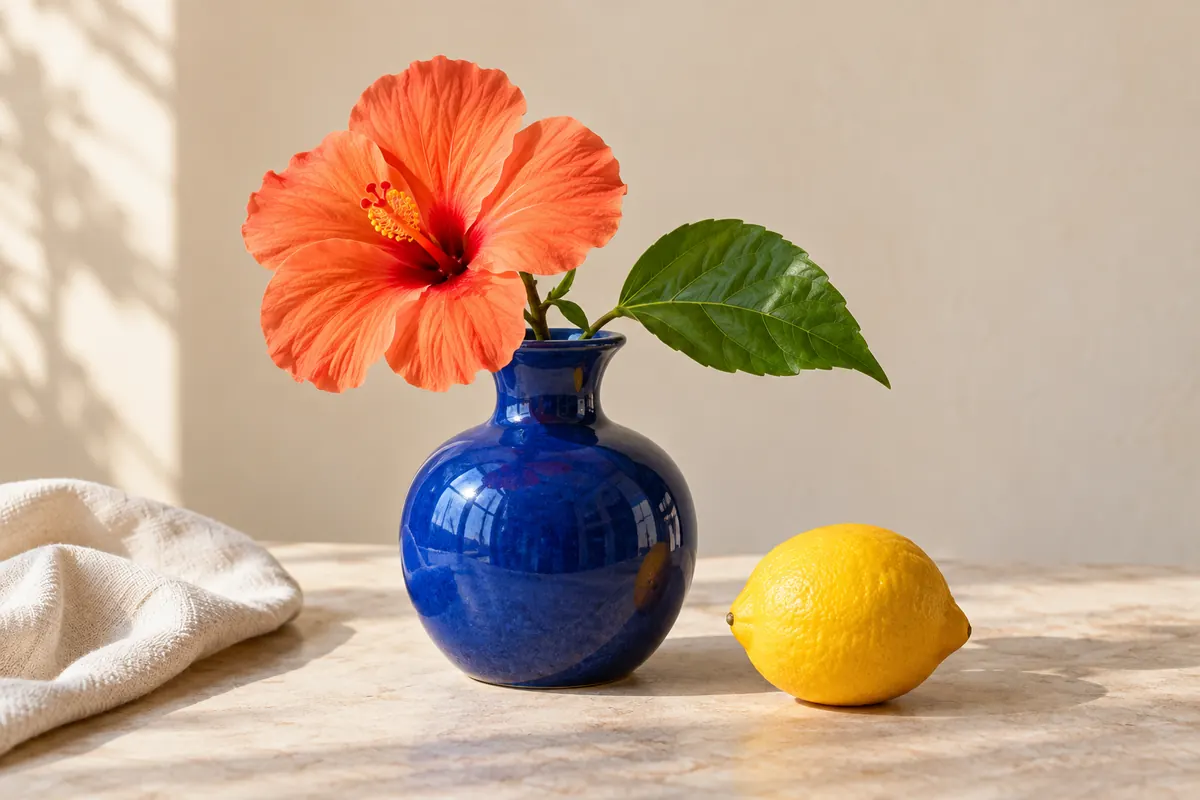
Example: extracting a color palette from a photo
Upload a photograph and RazSoft analyzes its colors to create a reusable palette. Copy an extracted color, or select an exact point from the image when you need a specific HEX value.
How to extract colors from an image
Extracting colors from an image with RazSoft takes only a few steps:
- Upload an image from your device.
- Wait for the image to appear in the preview.
- View the automatically generated color palette.
- Click or tap any point on the image to pick an exact color.
- Copy the HEX value for your design, CSS, application, or branding project.
No account or software installation is required. Local files are processed in-browser.
Generate a color palette from an image
Instead of selecting colors manually, use the image color palette generator to discover a representative palette from a photograph, illustration, logo, product image, website screenshot, or mood board.
- Turn a landscape photograph into a natural color palette.
- Extract colors from a logo to identify its brand colors.
- Analyze a website screenshot to discover interface colors.
- Create matching marketing graphics from a product image.
- Reuse the color scheme of an illustration or mood board.
After choosing a color, continue in the Color Palette Generator to create a complete shade system for CSS and Tailwind CSS.
Create shades from this colorPick an exact color from an image
Sometimes you do not need the dominant colors of an image—you need the color of one specific pixel or visual element. The image color picker lets you select a point directly from the preview and discover its exact HEX value.
Use it to identify a button or background in a screenshot, match an existing UI element, inspect an illustration, reproduce a visual style, or find a brand color from a logo. The selected HEX color can be reused in CSS, Tailwind CSS, design systems, and graphic design applications.
Image Color Extractor for designers and developers
Image colors are often the starting point for a larger design system. Designers can use extracted colors for branding palettes, mood boards, social media graphics, and interface themes. Frontend developers can turn colors from screenshots or references into CSS variables, Tailwind themes, gradients, or reusable design tokens.
Image Extract color Generate shades Create gradient
Build the next step with the Color Palette Generator or combine several extracted colors in the CSS & Tailwind Gradient Generator.
What can you use an Image Color Extractor for?
Extract colors from a logo
Upload a logo to identify its primary brand colors for websites, marketing graphics, and brand documentation.
Pick colors from a screenshot
Use the screenshot color picker to inspect a button, background, card, or other UI element and copy its HEX color.
Create a color palette from a photo
Photographs offer natural inspiration for website themes, illustrations, presentations, and marketing designs. Upload a photo to generate a palette from it.
Find website colors
Upload a website screenshot and pick colors used for buttons, backgrounds, cards, or typography when recreating or reviewing an interface.
Discover colors for CSS
Copy extracted HEX values into CSS variables, component styles, gradients, and design tokens.
Create Tailwind color systems
Open the RazSoft Color Palette Generator after selecting a color to create a complete Tailwind-style shade scale.
Supported image formats
RazSoft Image Color Extractor supports common browser image formats:
- PNG
- JPEG / JPG
- WebP
- GIF
- AVIF
- BMP
The maximum supported file size is 30 MB. Images selected from your device are processed locally whenever the format is supported by your browser.
Exact color picking vs color palette extraction
An exact color picker identifies the color at a specific point in an image. Use it when you need the precise color of a button, background, icon, or visual element.
A palette extractor analyzes the complete image and identifies representative or dominant colors. Use it when you want to understand the overall color scheme of a photograph, logo, or design. RazSoft provides both workflows in the same tool.
How accurate are colors picked from an image?
A sampled color represents the pixel information available in the image displayed by your browser. JPEG compression can introduce small differences between nearby pixels, screenshots can contain anti-aliasing around text and shapes, and color profiles or display settings can change how colors appear visually.
PNG images are often preferable when an exact pixel value is important. Zooming in on a flat area instead of an anti-aliased edge also produces a more representative result.
Are my images uploaded?
Images chosen from your device stay on your device. They are decoded and analyzed directly in your browser and are not uploaded to or stored by RazSoft.
When you use the optional ?image= URL parameter, the linked image is fetched temporarily through RazSoft so the browser can analyze it. URL-fetched images are not stored.
Frequently asked questions
What is an image color extractor?
An image color extractor analyzes an image and identifies the colors it contains. It can generate a representative color palette or let you select a specific point in the image to find its exact color value.
How do I extract colors from an image?
Upload an image to RazSoft Image Color Extractor. The tool analyzes it and displays a set of representative colors. You can also click or tap a specific part of the image to select its exact color.
How can I get a HEX color from an image?
Upload the image and select the area whose color you want to identify. The color picker returns the corresponding HEX value, which you can copy into CSS, design software, or another application.
Can I create a color palette from a photo?
Yes. Upload a photograph and the Image Color Extractor identifies representative colors that can be used to build a palette inspired by the photo.
Can I pick a color from a screenshot?
Yes. Upload a screenshot and select the interface element, button, background, or other area whose color you want to identify.
Can I extract colors from a logo?
Yes. The tool can identify colors from logos and other brand assets, which is useful when recreating a brand palette or matching existing branding.
Are my images uploaded to RazSoft?
Images selected from your device are processed locally in your browser and are not uploaded to RazSoft. If you open the tool with an image URL, RazSoft fetches that linked image temporarily for extraction but does not store it.
Which image formats are supported?
The tool supports PNG, JPEG, WebP, GIF, AVIF, and BMP images, subject to browser compatibility.
What is the maximum image size?
The current maximum supported image size is 30 MB.
Does the Image Color Extractor work on mobile?
Yes. It works in modern desktop and mobile browsers that support the required image APIs. You can upload an image and tap a point on it to inspect its color.
What is the difference between a color picker and a palette extractor?
A color picker identifies the color at one specific location in an image. A palette extractor analyzes the overall image and produces a collection of representative colors.
Can I use the extracted colors in CSS or Tailwind CSS?
Yes. HEX colors extracted from an image can be used directly in CSS. You can also send a selected color to the RazSoft Color Palette Generator to build a complete shade scale for Tailwind CSS or a design system.